
Google Integration
Import contacts one way from Google Contacts, Google Sheets, and Google Forms into a Simply Send subscription group. Each import is a Sync, not a CSV upload. Google access is read-only. Consent stays in Simply Send.
Overview
From Integrations, open Contacts, Sheets, or Forms. Choose the relevant setup guide below for the Google source you want to import.
Google Contacts
Select contact groups, map fields, then Sync.
Google Sheets
Select a spreadsheet and sheet, map columns, then Sync. Email or phone is required.
Google Forms
Select a form, map questions, then Sync. Email or phone is required.
Example walkthrough
A. Import from Google Sheets
This five-step Google Sheets example shows the full connection and Sync flow. Google Contacts and Google Forms follow the same overall pattern, with their source-specific steps documented below.
- 1
Find Google Sheets
Search Integrations for Google, then select Connect on Google Sheets.
https://app.simplysend.email/integrations?search=google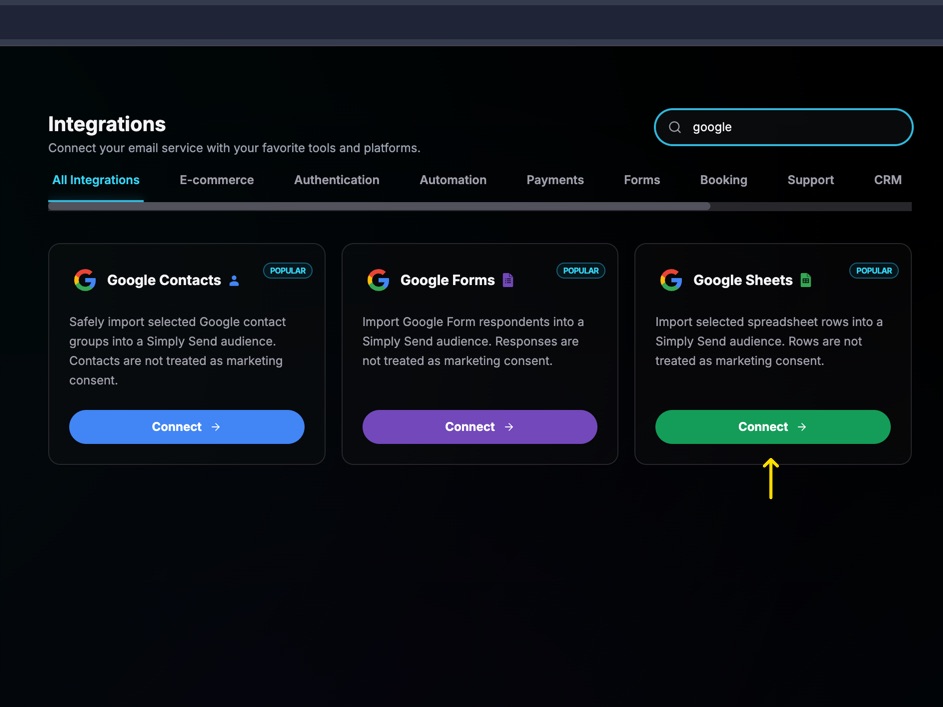
- 2
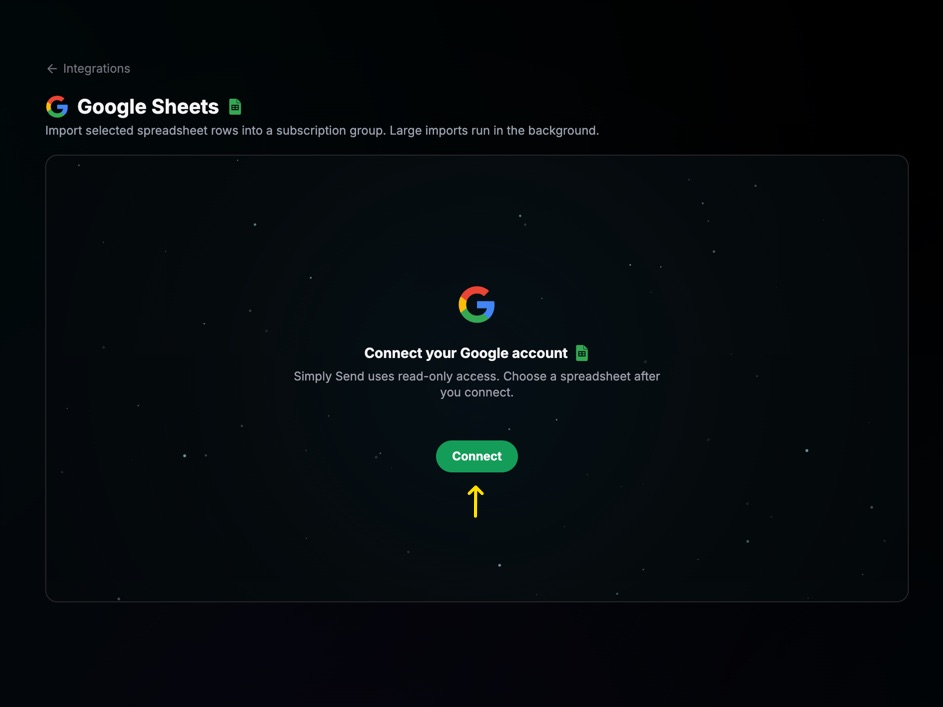
Connect your Google account
Open Google Sheets from the Integrations page and select Connect.
- 3
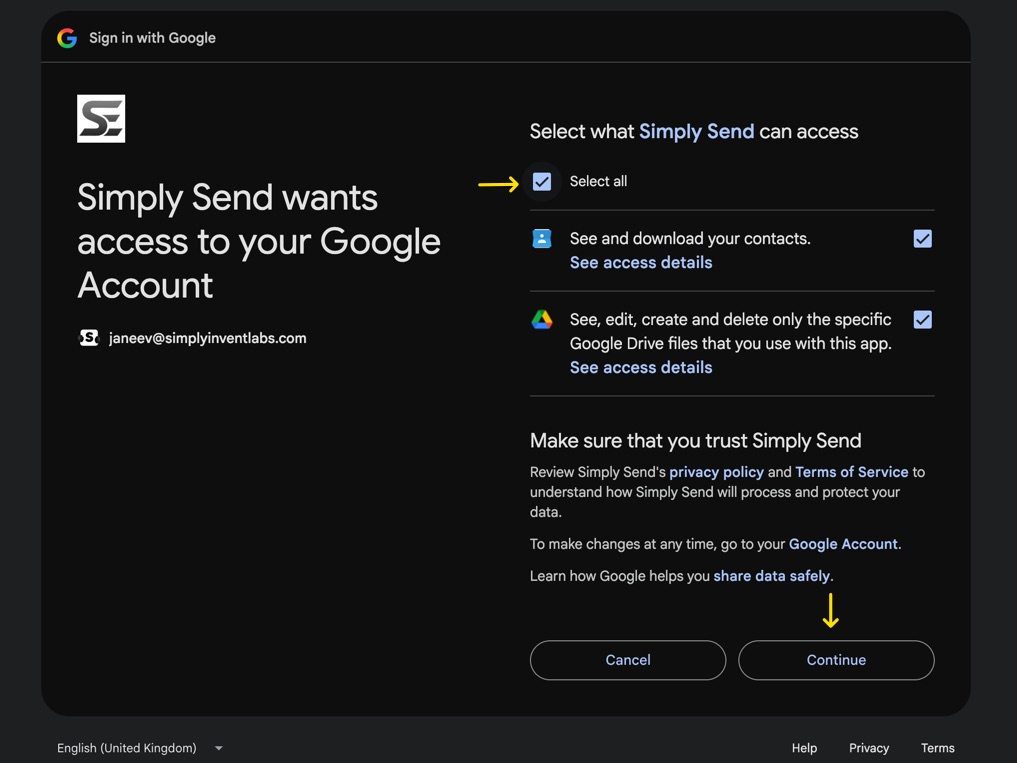
Review Google access
Review the Google access screen and continue only after confirming the requested access.
- 4
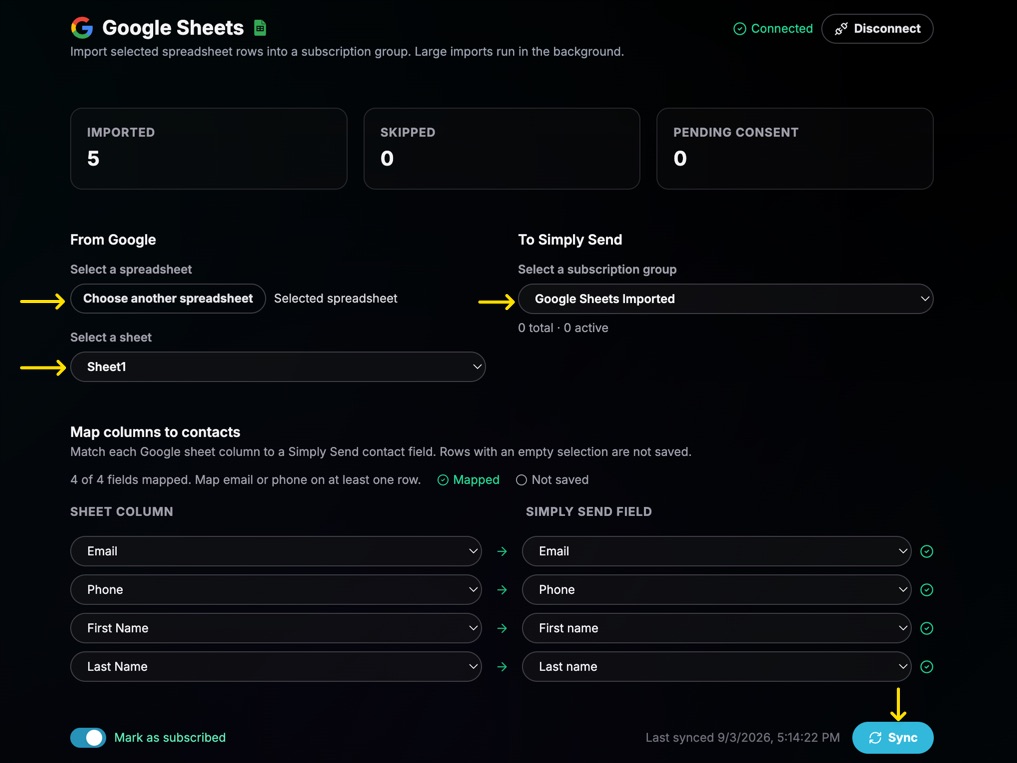
Choose, map, and Sync
Select the spreadsheet and specific sheet. Map columns to contact fields and custom attributes; an email address or phone number is required. Choose the destination subscription group and whether to mark imported contacts as subscribed or unsubscribed, then select Sync. Mark contacts as subscribed only when they have opted in to receive email, such as through completed double opt-in. Large imports can continue in the background.
- 5
Verify the imported audience
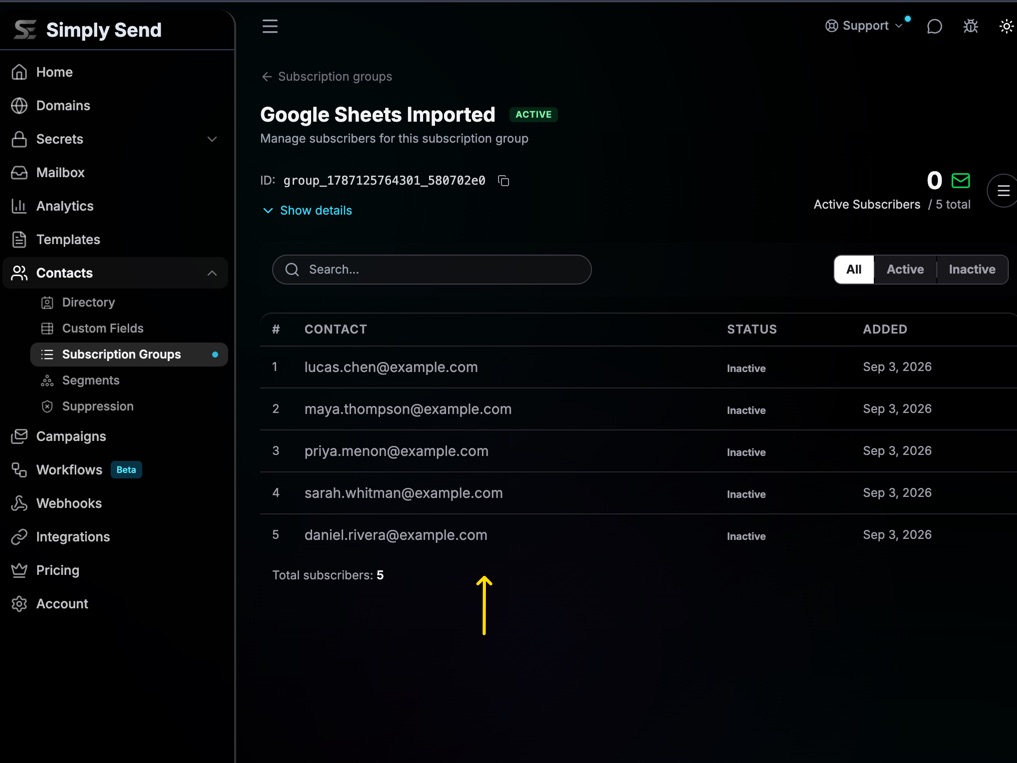
Open the destination subscription group to review the imported contacts and their subscription status.
B. Import from Google Contacts
Import selected Google Contact groups, map fields, then Sync. The steps follow the Google Sheets workflow above; from the Integrations page, select Google Contacts instead of Google Sheets.
https://app.simplysend.email/integrations/google-contacts- 1Open Google Contacts. From Integrations, select Google Contacts.
- 2Connect Google. Select Connect and approve the read-only Google access request for the account you want to use.
- 3Select groups. Under From Google, turn on one or more contact groups to import.
- 4Choose the audience. Under To Simply Send, select the subscription group and whether to mark imported contacts as subscribed or unsubscribed. Mark contacts as subscribed only when they have opted in to receive email, such as through completed double opt-in.
- 5Map fields and Sync. Map the contact fields, then start the Sync.
Contacts already imported stay in Simply Send if you later disconnect Google.
C. Import from Google Forms
Import responses from one Form and map its questions to Simply Send contact fields. The steps follow the Google Sheets workflow above; from the Integrations page, select Google Forms instead of Google Sheets.
https://app.simplysend.email/integrations/google-forms- 1Open Google Forms. From Integrations, select Google Forms.
- 2Connect Google. Select Connect and approve the read-only Google access request for the account you want to use.
- 3Choose the form. Under From Google, select the Form whose responses you want to import.
- 4Map questions. Map Form questions to contact fields and custom attributes. Include an email address or phone number for each contact.
- 5Choose the audience and Sync. Select the destination subscription group and whether to mark imported contacts as subscribed or unsubscribed. Mark contacts as subscribed only when they have opted in to receive email, such as through completed double opt-in, then start the one-way Sync. Large imports can continue in the background.
Consent and compliance
Simply Send does not take marketing consent from Google. Before Sync, choose whether imported contacts are marked as subscribed or unsubscribed in the selected subscription group. Unsubscribe, bounce, complaint, and suppression rules stay in Simply Send.
Google access is read-only. Imports are one-way on Sync. Simply Send does not request access to Gmail data or use Gmail to send email. The use of raw or derived user data received from Google Workspace APIs will adhere to the Google User Data Policy, including the Limited Use requirements.
Disconnect
Disconnect removes the Google connection. Contacts already imported stay in Simply Send.