
SSO Login Issues
Having trouble signing in with Enterprise SSO, Microsoft, or Google? This guide covers the most common SSO login problems and how to resolve them.
SSO button not appearing after entering my email
Your organization may not be onboarded yet
SSO login requires your organization to be onboarded by the Simply Send team first. Even though the sign-in page shows Enterprise, Microsoft, and Google login options, those options only activate for email domains that have completed the SSO onboarding process.
If your domain is not yet onboarded, Simply Send will fall back to standard email & password login after you click Continue. To enable SSO for your organization, you need to request onboarding.
Read the Enterprise SSO Onboarding GuideMicrosoft Entra sign-in says the account cannot access the application
A Microsoft message such as AADSTS50020 means the account authenticated with Microsoft, but the account or tenant is not currently authorized to access the Simply Send SSO application. Common causes include incomplete tenant onboarding, a missing enterprise-application assignment, or a user who has not been invited as an external guest. This is a Microsoft administrator configuration issue—not a password problem.
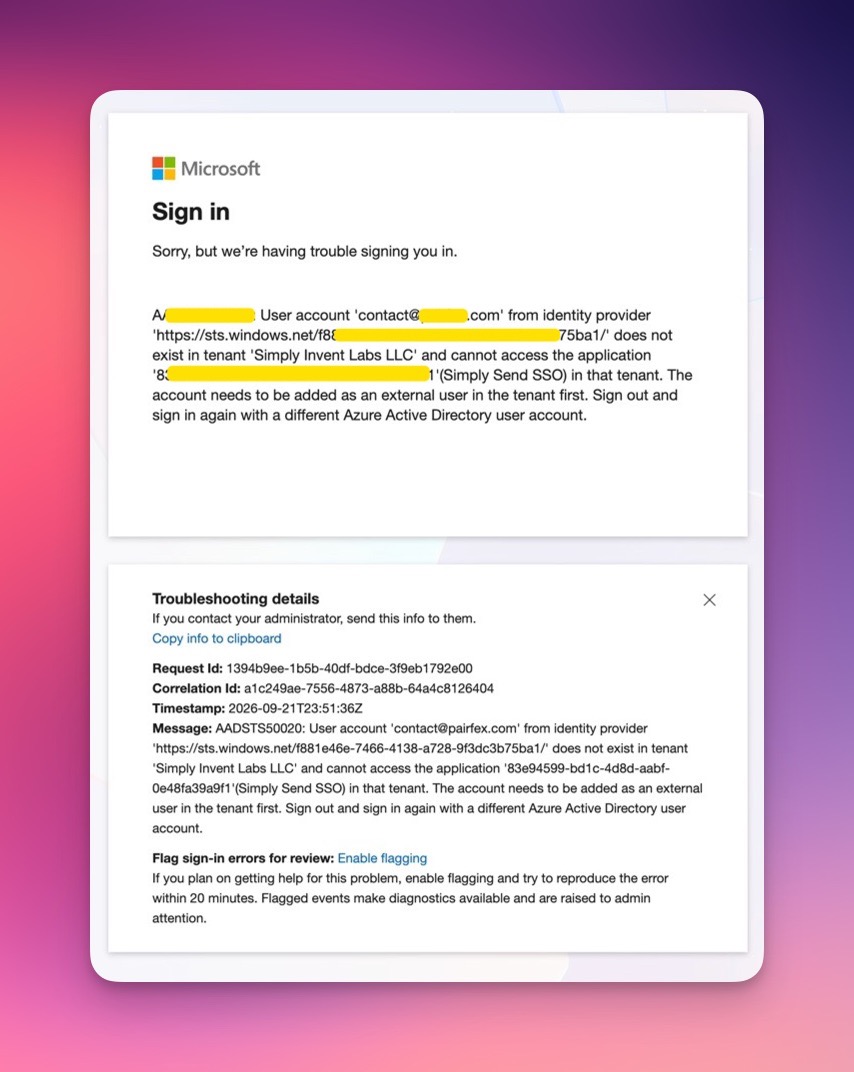
Your organization may need to complete Microsoft Entra SSO onboarding before you can sign in. Follow the onboarding guide and submit your organization’s request there:
Open the Enterprise SSO onboarding guideCommon SSO Login Errors
Access denied / not authorized
Your identity provider authenticated you successfully, but Simply Send rejected access. This usually means:
- Your account has not been assigned the Simply Send application in your IdP (Azure AD / Google Admin)
- Your organization's SSO configuration has changed since onboarding
- You are using a personal email address instead of your work email
Fix: Ask your IT administrator to verify that your user account is assigned to the Simply Send application in your IdP.
Redirect loop / stuck after IdP login
If you are redirected to your IdP, authenticate successfully, but then end up back at the Simply Send login page in a loop:
- Clear your browser cookies and cache, then try again
- Try signing in using a private/incognito window
- Check that your browser is not blocking third-party cookies (required for SSO redirects)
- Confirm the callback URL in your IdP app registration matches the Simply Send SSO endpoint
SAML assertion failed / invalid response
This error typically appears with custom SAML providers (Okta, OneLogin, etc.):
- The SAML certificate in your IdP may have expired — contact your IT team to renew it
- The entity ID or ACS URL in your IdP configuration may have changed
- Clock skew between your IdP server and Simply Send servers (must be within 5 minutes)
- The
emailattribute is not being mapped correctly in your IdP assertion
Signed in but account shows wrong data / empty
If SSO login succeeds but you land on a new empty account instead of your existing one, your work email address via SSO does not match the email registered in Simply Send. This can happen if you previously signed up with a personal email or a different address.
Fix: Contact support with your SSO email and the original account email so we can merge or migrate your account.
Quick Checklist Before Contacting Support
Try these first
- □You are entering your work email address (not a personal Gmail/Outlook)
- □You clicked Continue and waited for the SSO button to appear (not the password field)
- □Your browser cookies and cache have been cleared
- □You have tried a private/incognito browser window
- □Your IT admin has confirmed your account is assigned to the Simply Send app in your IdP
- □Your organization's SSO onboarding has been completed with the Simply Send team
Still stuck? Contact support
If you have gone through the checklist above and SSO login still isn't working, submit a support ticket. Please include your work email address, your organization name, and a description of the error you see.
Submit a support ticket